

How do I add a new user to Klaviyo?
-
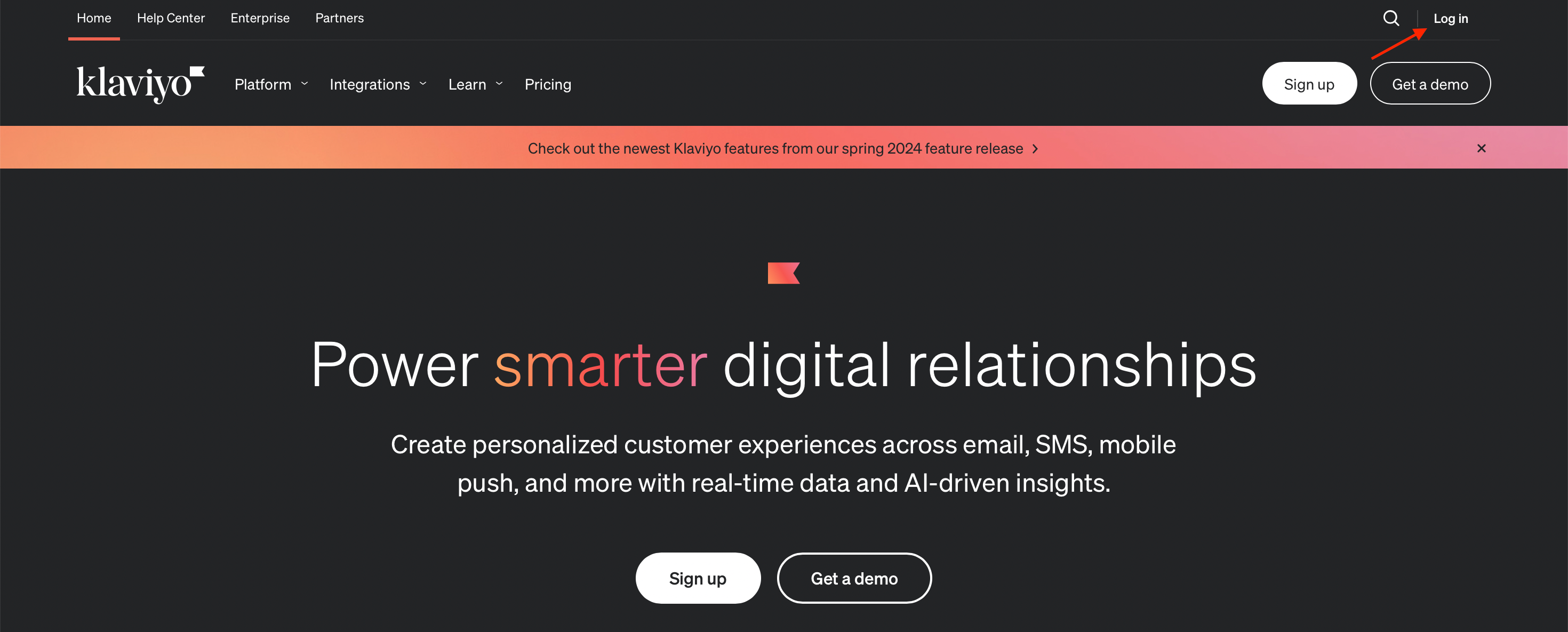
Log in to your Klaviyo account.
Open your web browser and visit the Klaviyo login page.
Enter your email email address and password, then click "Log in".
-
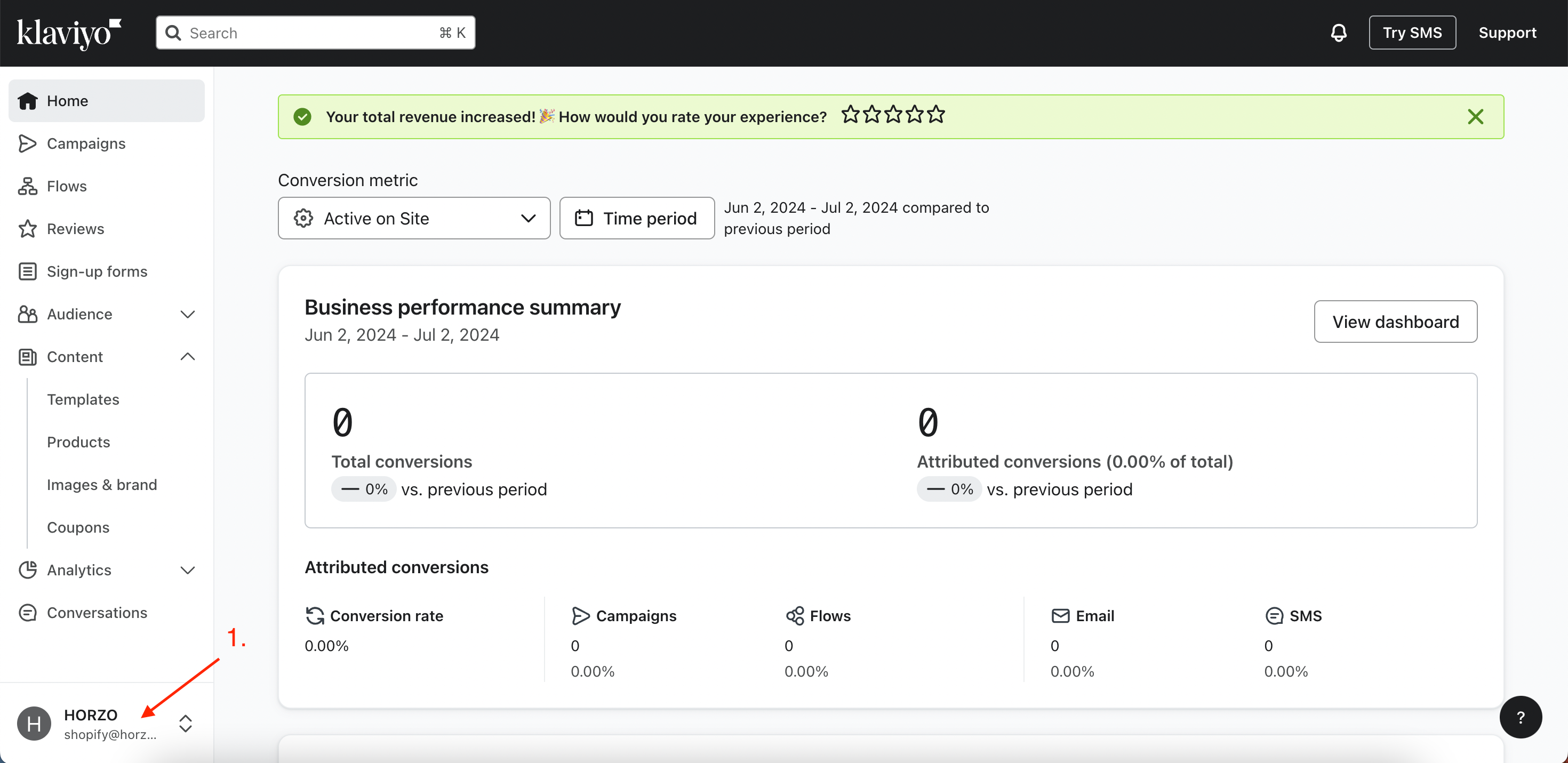
1. Go to "Account":
On Klaviyo's main page, click on your profile icon or name in the bottom left corner.
-
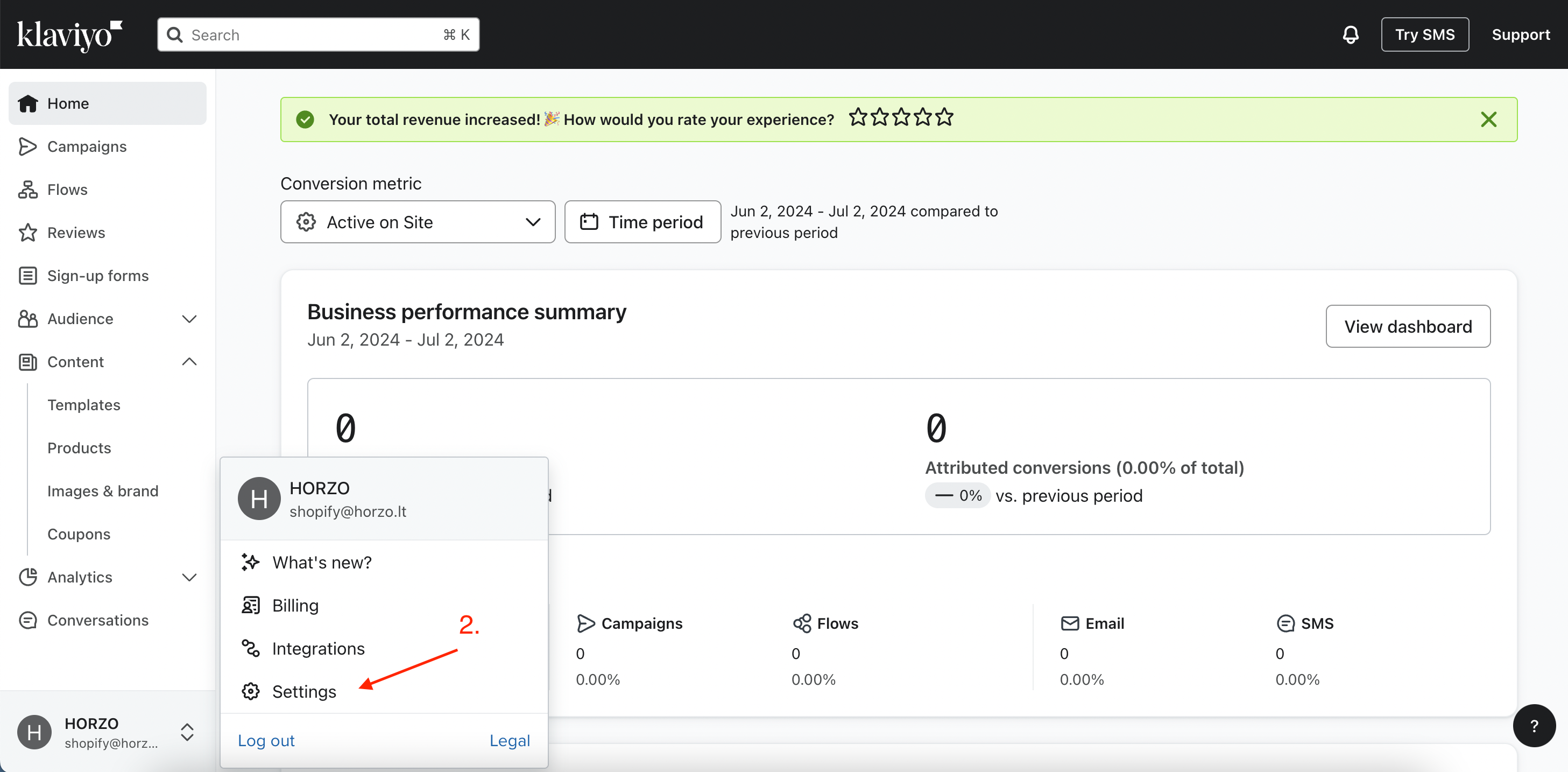
2. Select "Settings".
-
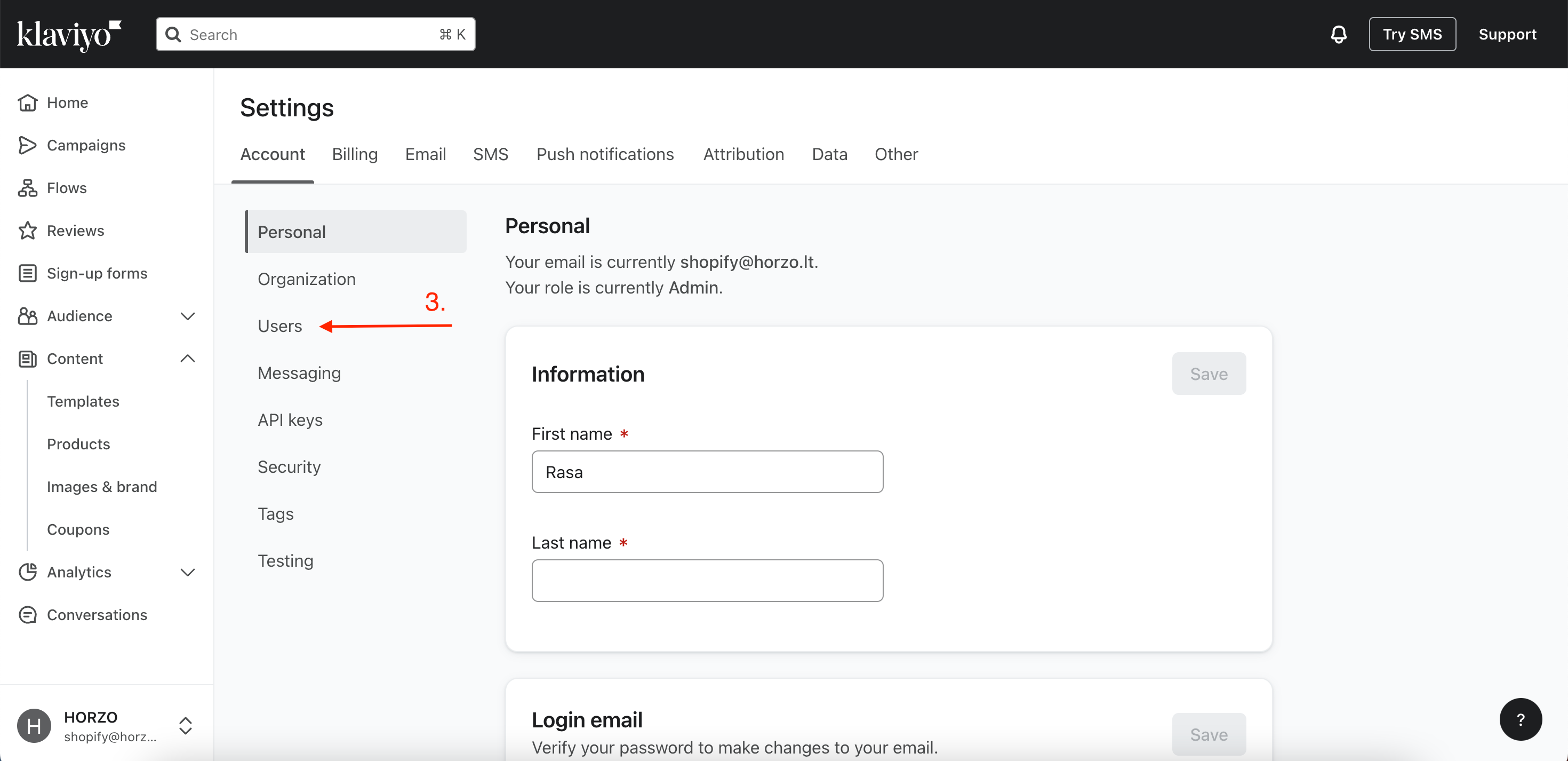
3. Open "Users".
Select "Users" from the settings menu.
-
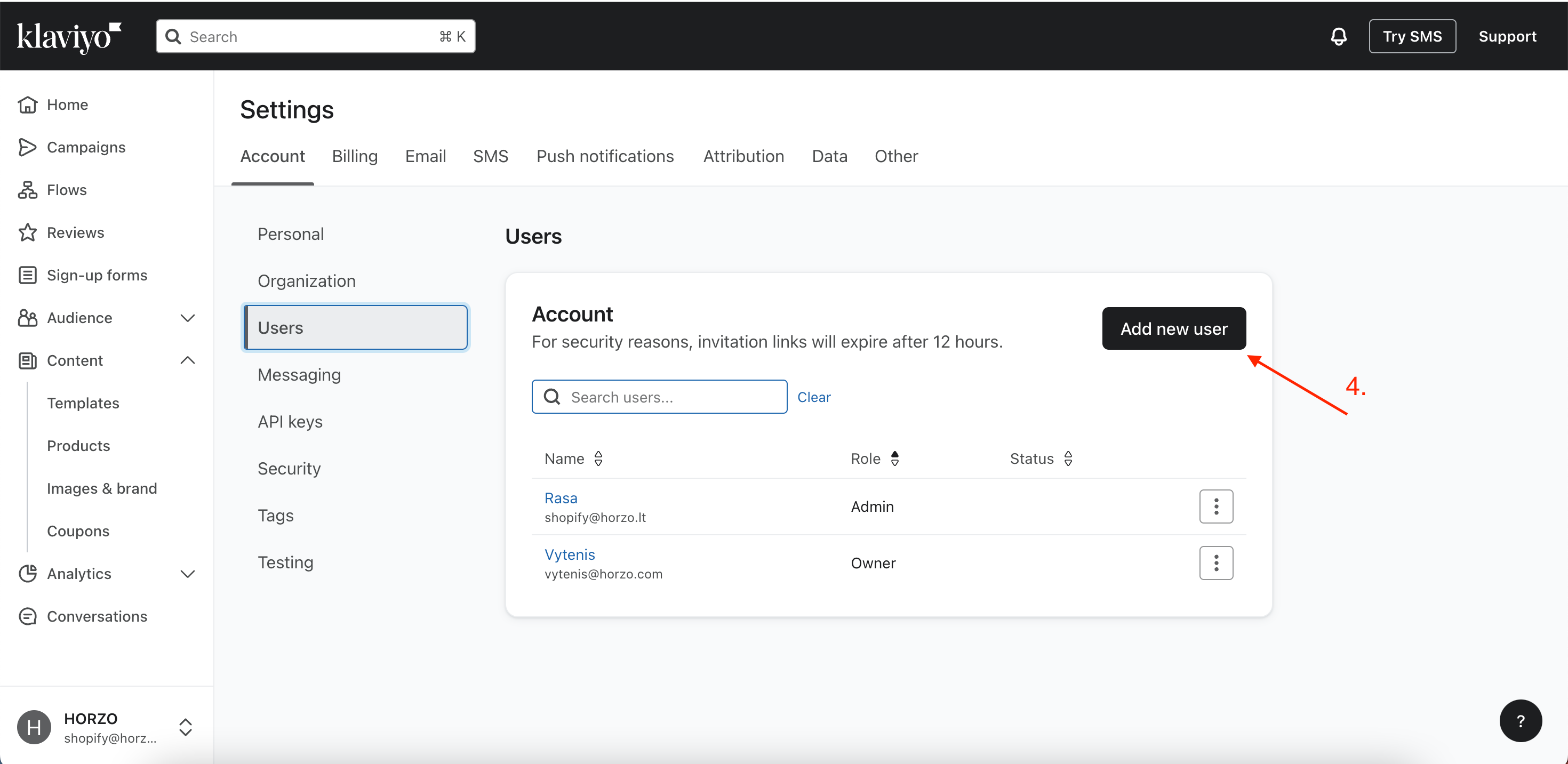
4. Add a new user.
- Click the "Add New User" button.
-
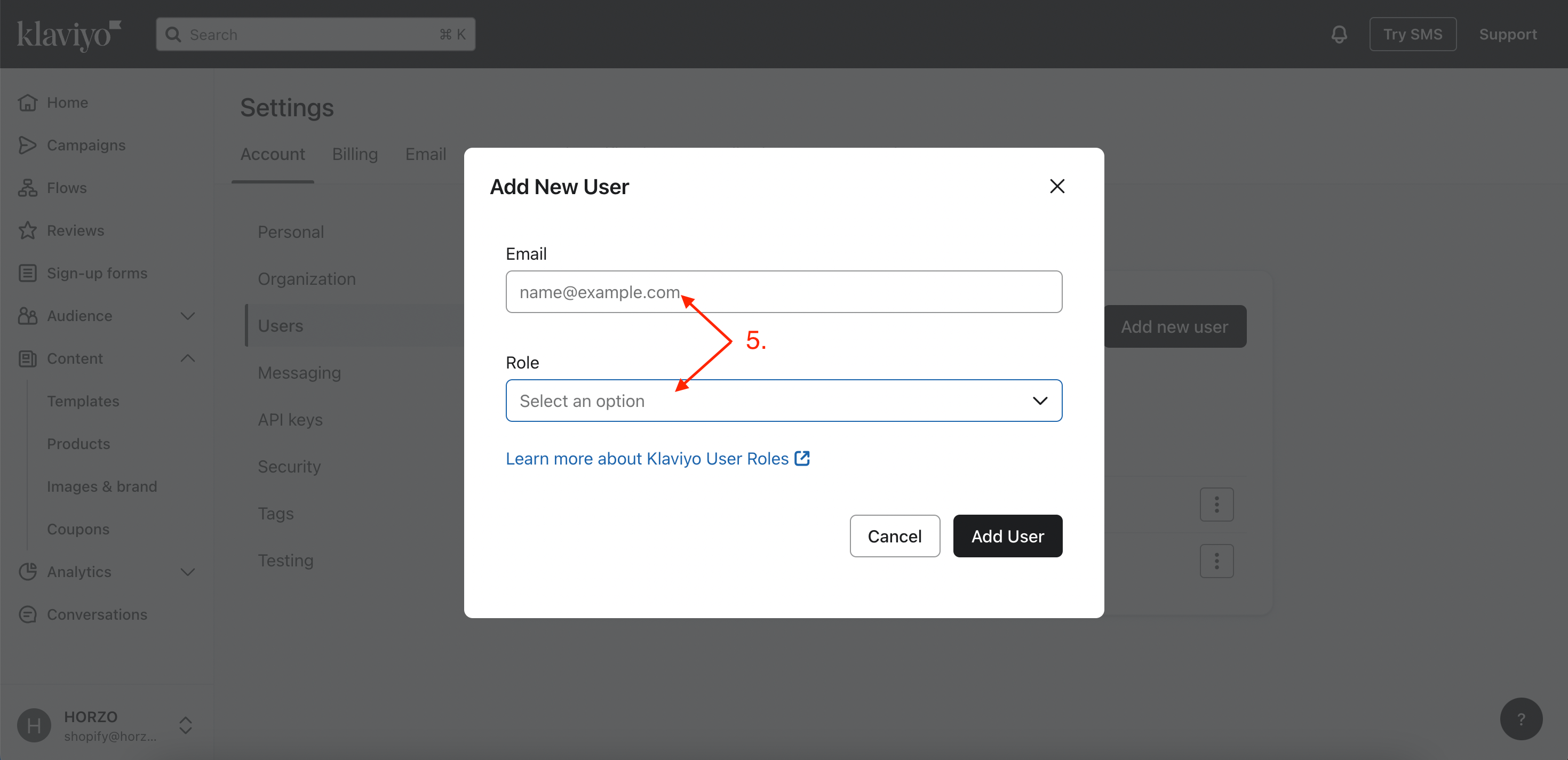
5. Enter the data and assign the role.
- In the window that opens, enter the new user's e-mail address. postal address.
- Select the user role (role) from the available options.
-
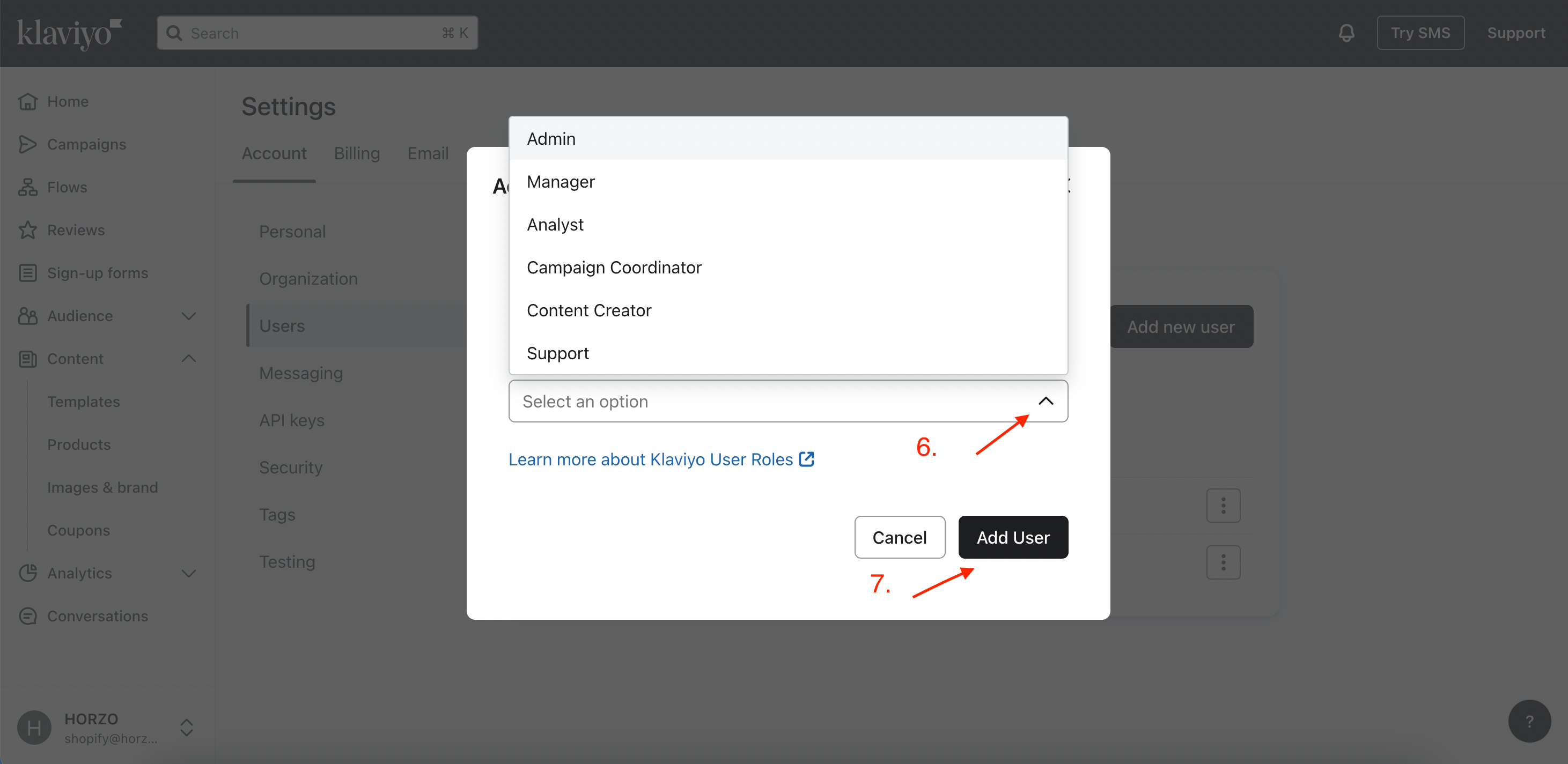
6. Select a role and add.
Choose a user role (role) from the available options:
- Admin
- Manager
- Analyst
- Support
- Campaign Coordinator
- Content Creator
If you want to assign your account to someone who will administer it for you, choose Admin.
In step 7, click "Add User". That's it, you have successfully added a new user. The person you added in step 5 to your email will receive an invitation in the mail. You must click "Accept" in it. It is worth noting that the sent link will be active at 12:00. If the time has passed, everything must be repeated from step 1.
If necessary, you can change user roles or remove them from the list at any time through the same "Users" menu.
